Query Profile
VCluster UI Query Profile page
The Query Profile page allows you to import a tar file containing query profile data into tables. After importing, the Job Status page displays the target schema and key ID. You can then use this schema and key ID in the LLM to analyze your queries.
Import query profile data
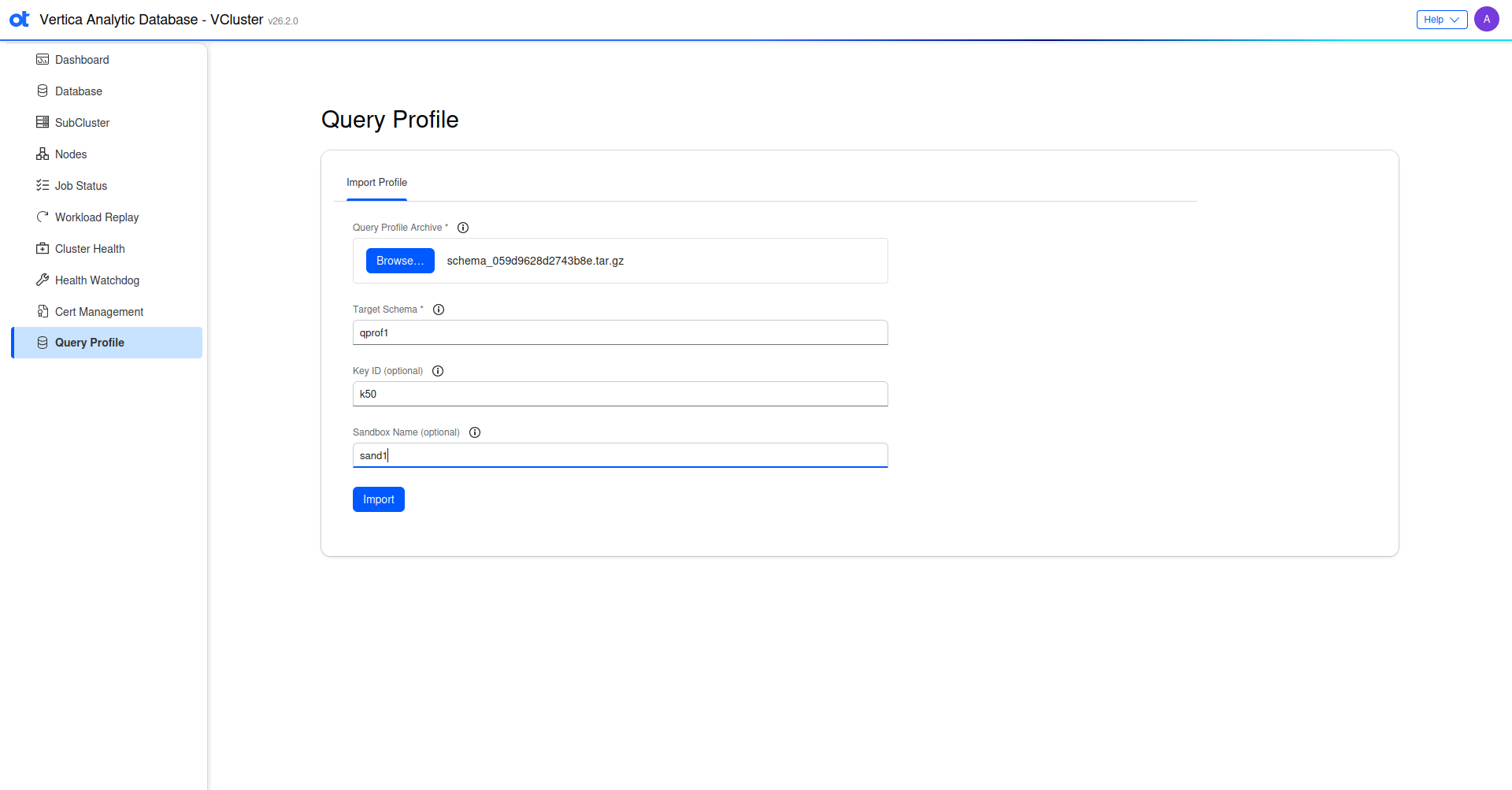
- Navigate to the Query Profile page.
- Click Browse to select the tar file you want to import.
- Enter a Target Schema name where the query profile data will be imported.
- (Optional) Enter a Key ID to identify the profile data.
Note
A Key ID is a unique string that helps you keep record of your stored profiles. If you do not provide a key ID, a unique ID will be automatically generated. In the backend, copies of the stored internal tables are created using the naming format:<target_schema>.qprof_<table_name>_<key_id>. The combination of target schema and key ID can be used by the LLM to locate your saved profiles. - (Optional) Enter a Sandbox Name for the import job.
Note
If you do not provide a sandbox name, the profiles will be imported to the main cluster. - Click Import to begin uploading the data. The import job is created and you are directed to the Job Status page.
Monitor import job status
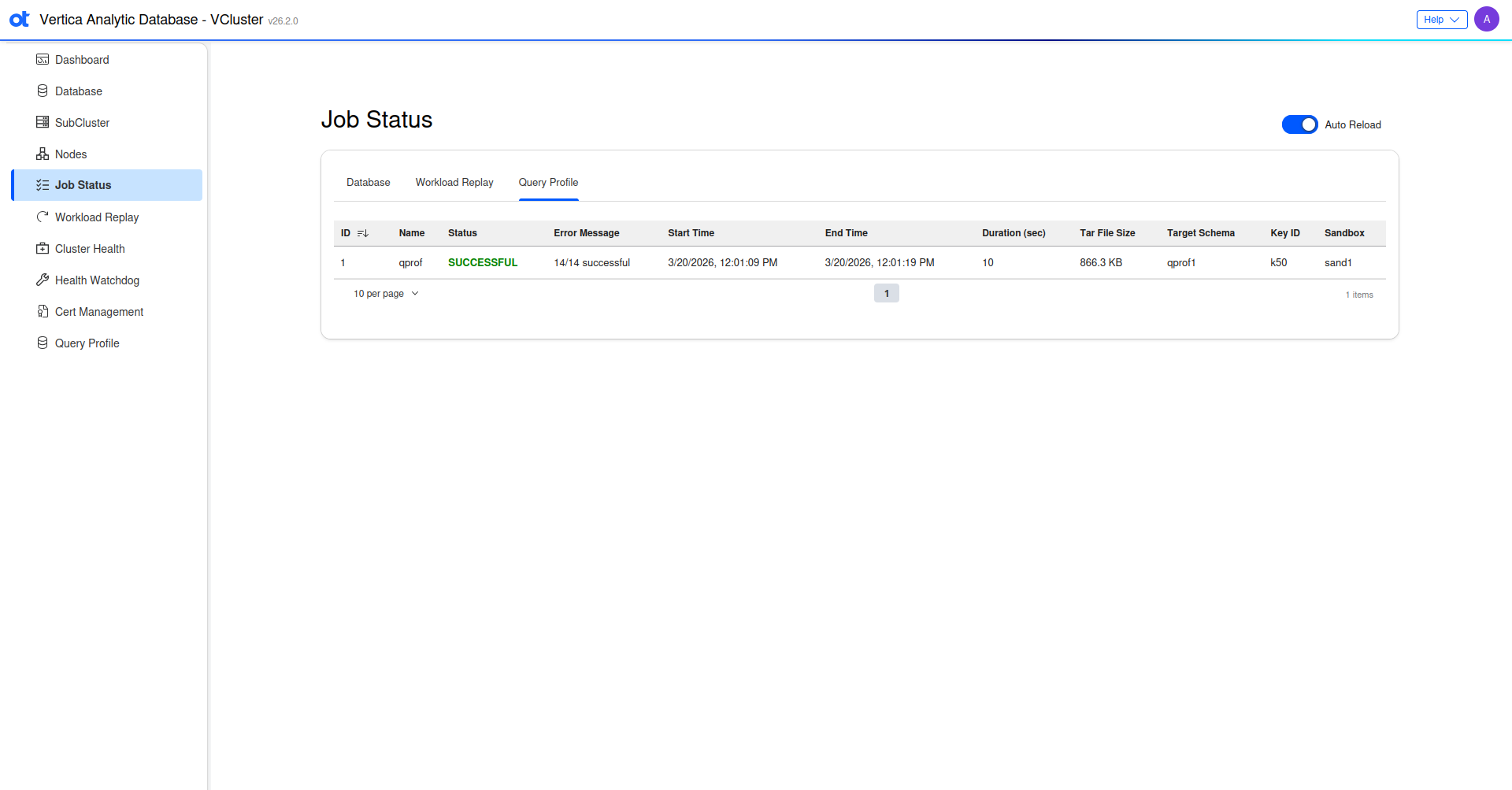
- On the Job Status page, in the Query Profile tab, locate your import job in the list.
- Once the job completes, note the Target Schema, Key ID, and Sandbox Name (if provided) displayed in the job details.
- Use the target schema, key ID, and sandbox name (if applicable) with the MCP Server Query Profiling tools to leverage the LLM to analyze your imported query profiles.