Certificate Management
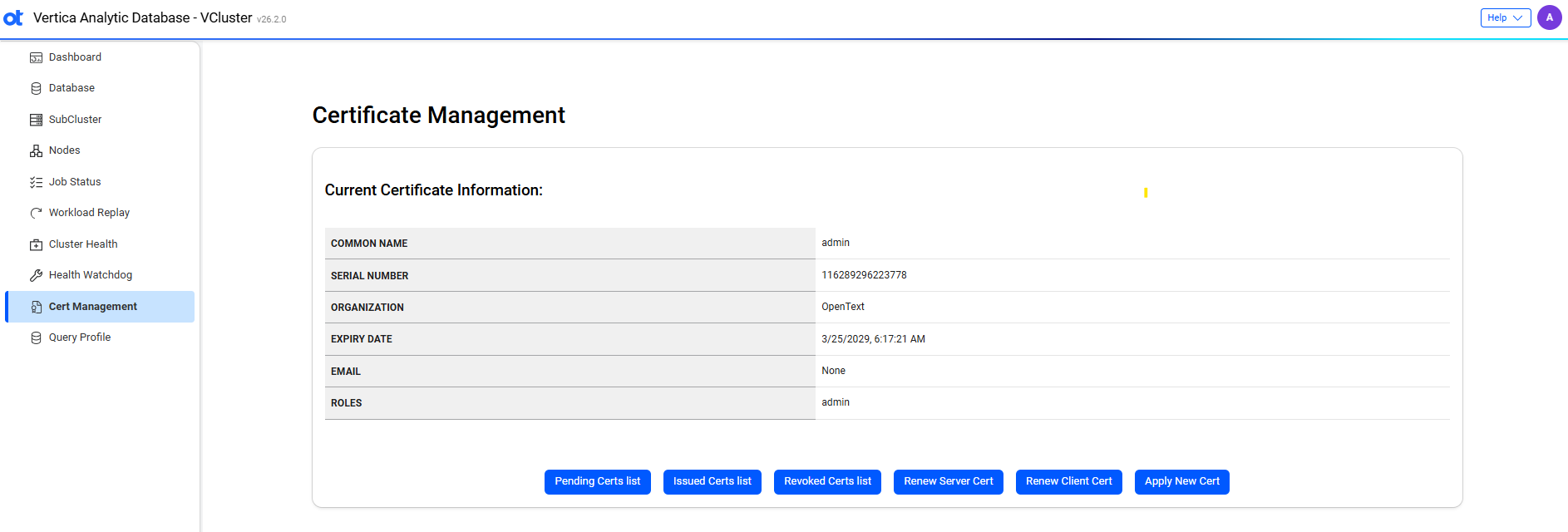
The Certificate Management page shows you your certificate information and enables you to manage your certificates.
Roles and permissions
The VCluster UI supports role-based access control (RBAC) to manage user permissions.
Migrating existing certificates
Existing certificates that were issued without a role assignment are not automatically migrated. RBAC roles are embedded in client certificates and cannot be changed after the certificate is created, so all existing certificates must be regenerated to include a role assignment before they can be used.
Note
After upgrading your Vertica version, your existing admin certificate remains valid and continues to work with your CA certificate. You do not need to regenerate it unless you want to explicitly rotate or invalidate it.To regenerate your certificate:
- Remove the existing certificate from your browser's certificate store.
- In the VCluster UI, apply for a new certificate using the Apply Client Cert option.
- An administrator reviews and approves the certificate request.
- Download the newly issued certificate and install it in your local browser.
For more information about revoking certificates, see Revoke certificates.
Role overview
The following table provides a brief overview of VCluster UI roles:
| Role | Description |
|---|---|
| operator | View VCluster status, start/stop VCluster, and manage job queue operations. Cannot scale/configure VCluster or manage users. |
| viewer | Read-only access to view cluster, node, and subcluster status, and monitor job queue operations. Cannot perform administrative tasks. |
Role permissions overview
The following table summarizes the operations available for each role:
| Operation | operator | viewer |
|---|---|---|
| VCluster status / list | ✓ | ✓ |
| VCluster start/stop | ✓ | ✗ |
| VCluster scale/config | ✗ | ✗ |
| Create/manage MCP users | ✗ | ✗ |
| Job queue operations | ✓ | ✓ |
Certificate management options
The following options are available to manage certificates:
-
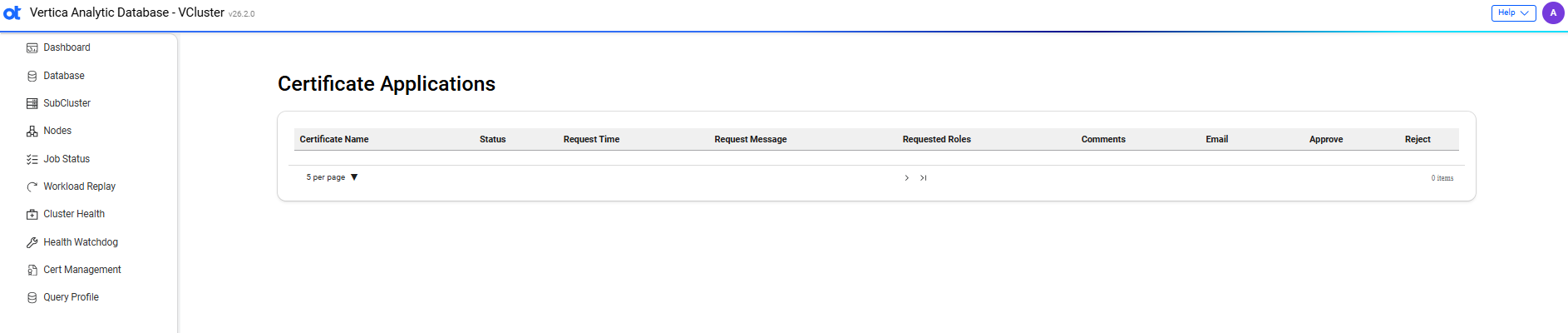
Pending Certs list: Shows a list of the status of server and client certificates.
-
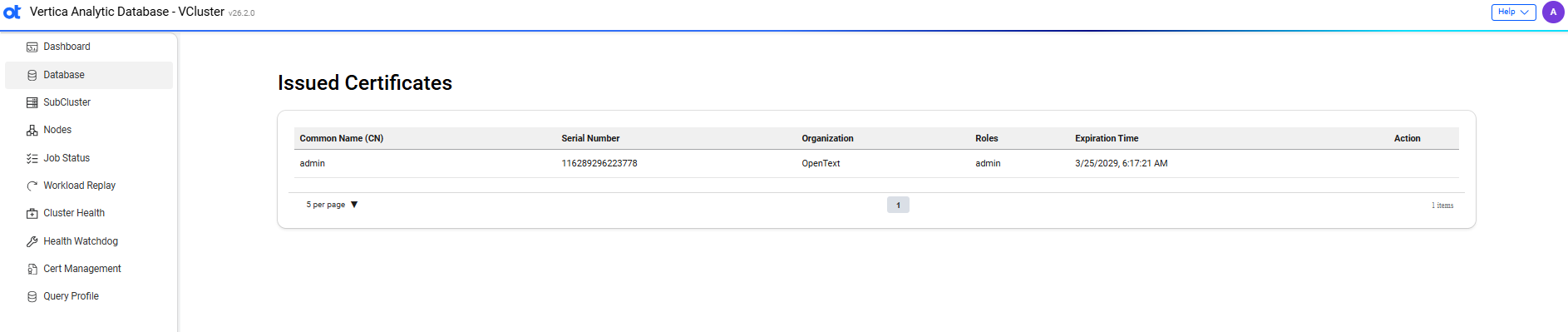
Issued Certs list: Shows a list of the issued certficates.
-
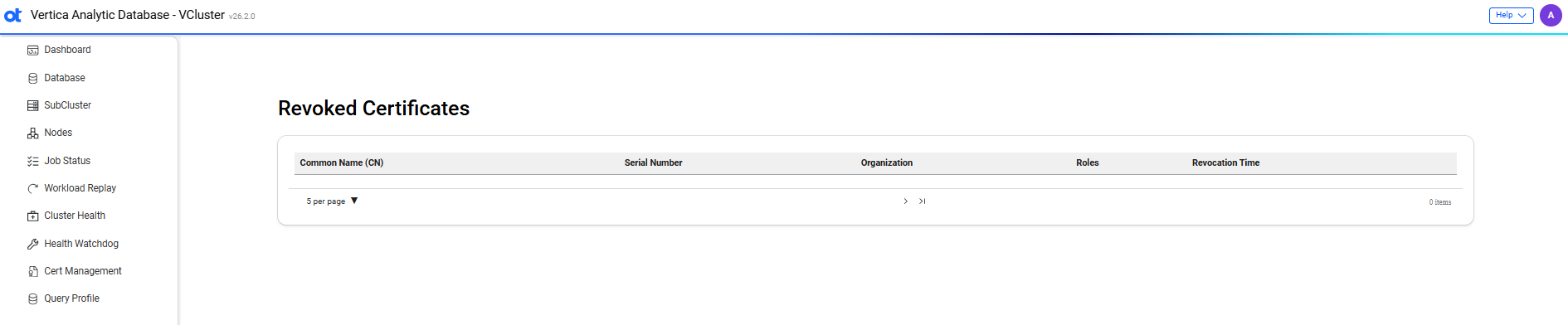
Revoked Certs list: Shows a list of the revoked certificates.
-
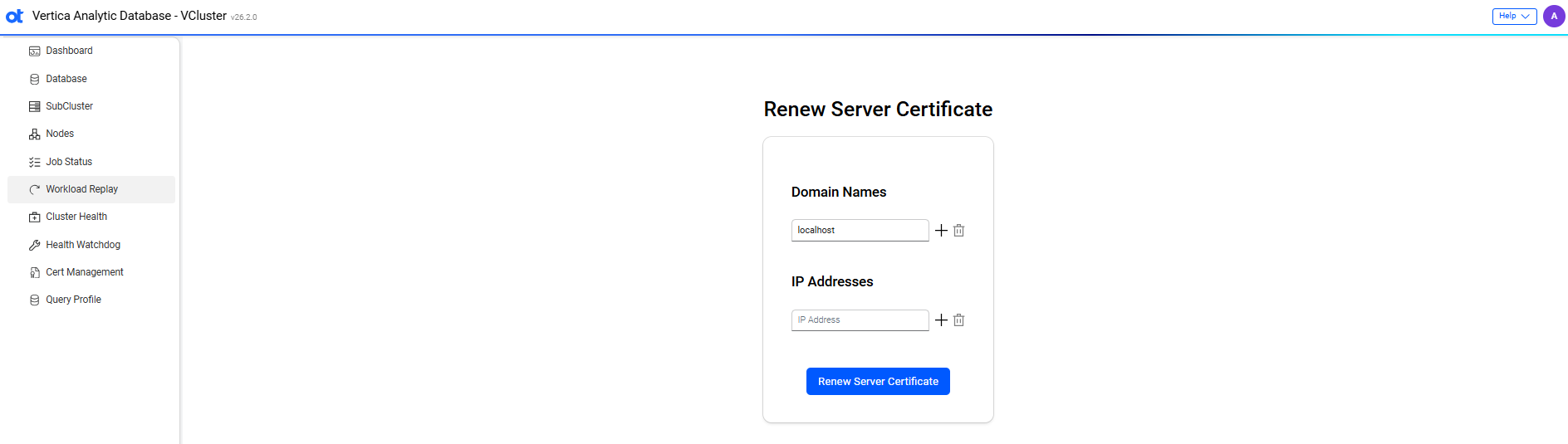
Renew Server Cert: Lets you renew your server certificate.
-
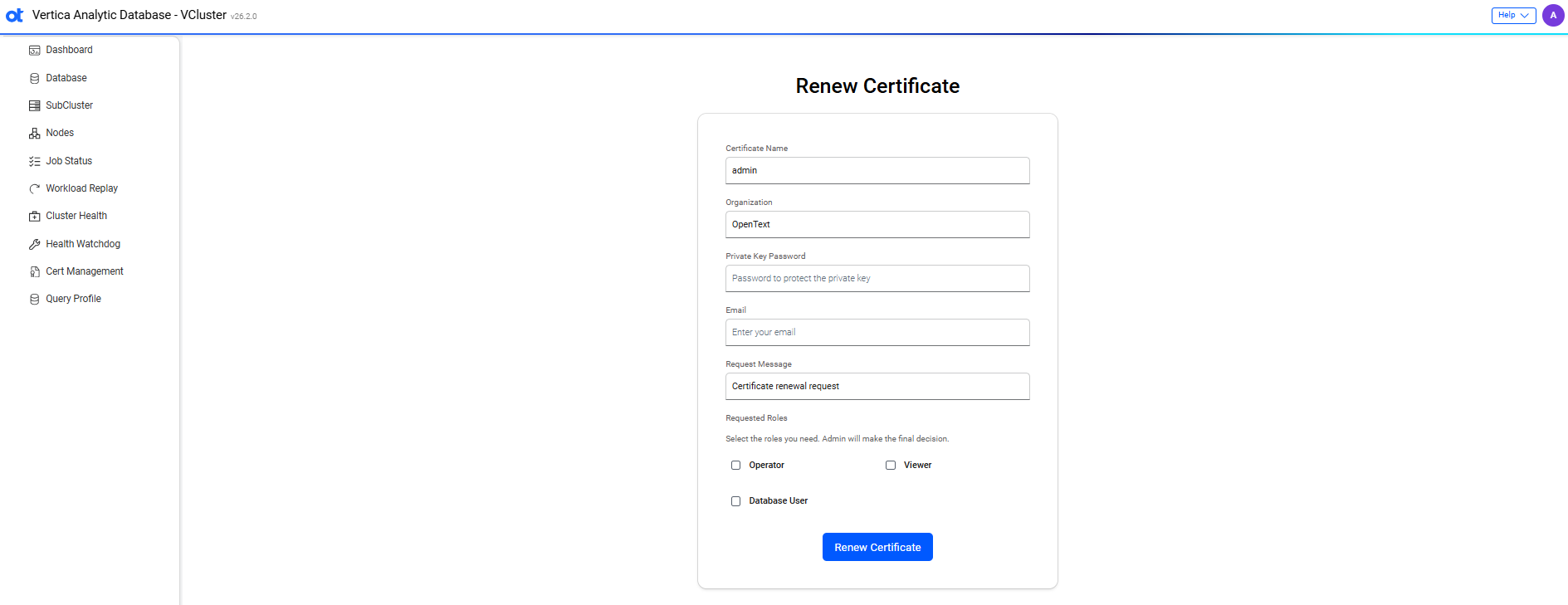
Renew Client Cert: Lets you renew your client certificate.
-
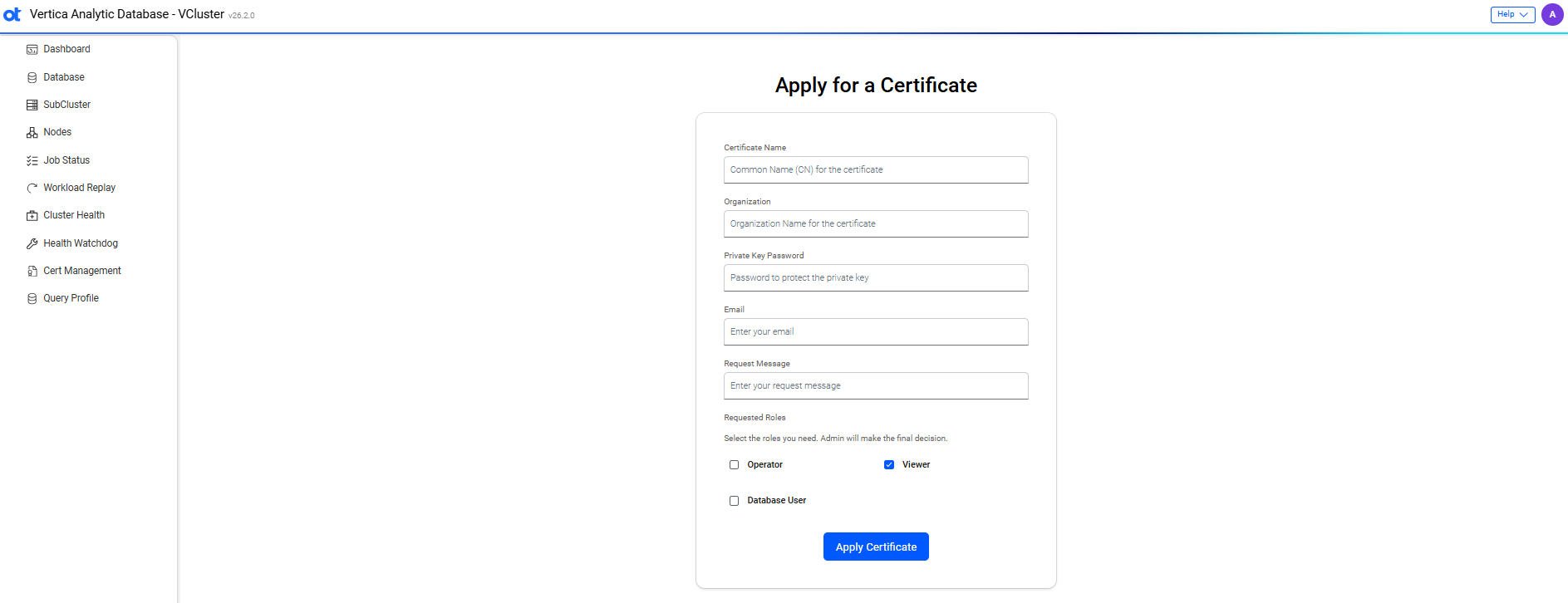
Apply Client Cert: Use this option to apply for a client certificate.
Revoke certificates
Only users with the admin role can revoke certificates. Revoking a certificate adds it to the Certificate Revocation List (CRL), immediately invalidating it.
To revoke a certificate:
- In the VCluster UI, go to the Certificate Management page.
- In the Issued Certs list, select the certificate you want to revoke and click the delete icon in the Action column.
- In the confirmation dialog, confirm that you want to revoke the certificate. A success message confirms the certificate has been revoked.
The certificate appears in the Revoked Certificates list and can no longer be used to authenticate.
To rotate the admin certificate and invalidate all certificates it issued:
- Run the following command to generate a new admin certificate:
vcluster_server --init - Install the new admin certificate in your browser.
- In the VCluster UI, go to the Certificate Management page.
- In the Issued Certs list, select the old admin certificate and click the delete icon in the Action column to revoke it.
- Confirm the revocation. The old admin certificate is added to the CRL, immediately invalidating it and any certificates it issued.