Get started with UC
UC is a database and data management platform that enables Vertica users to interact with and manage databases through a single interface. Only database administrators have access to UC.
UC UI tour
After logging in to MC and switching to UC, the home page appears. This page presents all accessible databases as interactive widgets. Both AI-enabled and non-AI-enabled databases are visible.
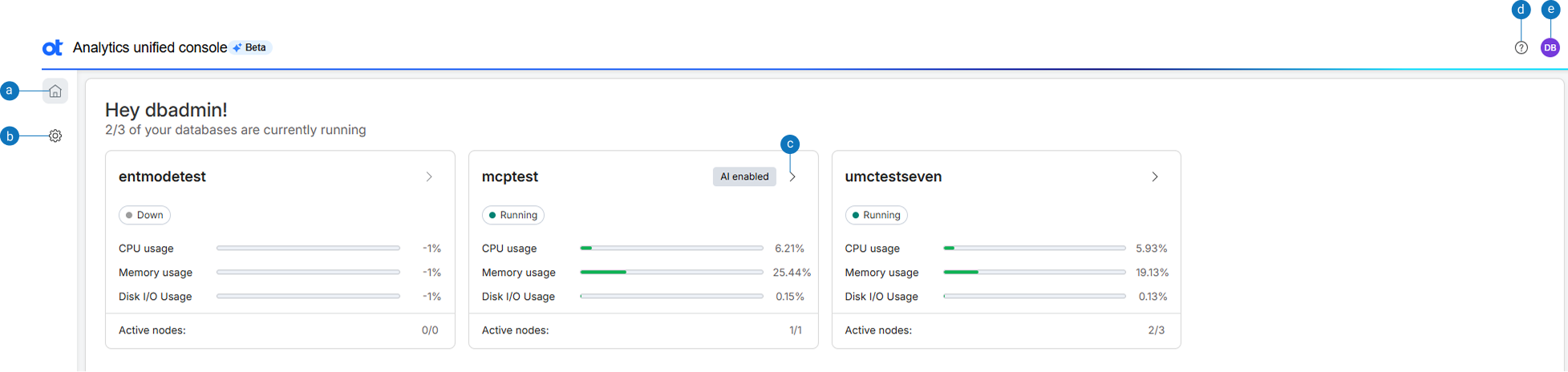
| Option | Description |
|---|---|
| a | Home: Displays the UC home page with database access options. |
| b | Settings: Displays the option to set AI preferences for the database. |
| c | >: Displays the SQL editor. |
| d | Help: Displays Unified console user documentation. |
| e | View profile: Displays the user profile along with options to switch and sign out of MC. |
Enable AI assistance
The Enable AI Assistance banner appears only when none of the available databases have AI enabled. You can enable AI functionality by configuring an AI model. Click Enable in the banner to enable AI assistance for a database. If at least one database in the system is AI enabled, this banner is not displayed.
Configure or edit AI preferences
You can configure or edit the default AI preferences.
- Login to UC.
- Choose AI preferences under Settings in the home page.
The AI preferences page opens and displays the following information:
- Host - The host name.
- Model - The large language model (LLM) that is used.
- Creator - The person who created the LLM.
- Enabled for - The database for which the LLM is enabled.
- Status - The current status of the LLM.
- Hover over ⋮ and select Edit. All the details of the LLM are displayed.
- From the Model provider list, choose the AI model provider that creates, trains, maintains, and hosts AI models. You can choose one among Anthropic, Google Gemini, Amazon Bedrock, or Others.
- From the Model name list, choose the specific LLM to use for inference.
- In the URL of the service hosting the model field, enter the root network address used to send requests to an AI service's API.
- In the Region field, choose the appropriate service region.
Note
This is applicable only if your LLM is Amazon Bedrock. - In the Secret access key field, enter the credential (secret key) required for secure authentication.
- In the API key field, enter the key used to authenticate API requests.
Note
If your LLM is Amazon Bedrock, enter the **Access Key Id**. Enter the **API key** only if you are using an LLM other than Amazon Bedrock. - In the Who should have access area, choose the required users depending on the role played by the user in the organization. For more information, see Configuration roles in MC.
- In the Which databases can access this area, choose the databases that can access the LLM. Note that only database versions 26.1 and above are supported.
- Click MCP status to configure the MCP token. For more information, see Configure the MCP client.
- Click Save.
Add a model
You can add a model from the default AI preferences.
- Login to UC.
- Choose AI preferences under Settings in the home page. The AI preferences page opens.
- Click +Add new model. Follow steps 4-13 in Configure or edit AI preferences.
SQL Editor
Use the SQL editor to write, edit, and execute SQL statements within UC without using any external tools.
Key features
Use the SQL editor to:
- Execute analytical queries.
- Save and reuse queries.
- View query results and execution details.
- Validate query execution.
- Access schema information.
Working with SQL editor
After logging in to the UC application, the home page appears. To launch the SQL editor, select > in the database widget.
Create an SQL query
You create SQL queries:
- Click + in the SQL editor. The New query tab opens.
- Enter your query in the SQL editor.
- From the Run list, do one of the following:
- Select Run last query to run the SQL query that was last executed. This option is helpful when you have multiple SQL queries but need to run only the latest SQL query.
- Select Run from cursor to run an SQL query using a database cursor to manage and process the results of a statement one row at a time, rather than as a single set of data.
- Select Run selection to run only the selected SQL query. This option is helpful when you have multiple SQL queries but need to run only one SQL query.
- Select the SQL query in the editor and click Format SQL to arrange and format the SQL query for better readability.
- In the Enter query name field at the top, enter the name of the query.
- To view the schema details of a table, select View Schema. The table columns display along with the datatypes.
History view
The History view tab stores the queries run previously. When you run a query, it appears in the Query History list. Queries of the last 2 weeks only are displayed.
To run a SQL query:
- Click ….
- Select Run.
To remove a SQL query:
- Click ….
- Select Remove.
Favorite view
You can bookmark SQL queries and run them again later in the Favorite view tab. Saved SQL queries display as a list of favorites next to the History view tab.
To bookmark a SQL query as a favorite:
- Select the SQL query.
- Select Run.
- Select Favorite.
- Enter a name and select Add.
To run a SQL query from the Favorites view:
- Select ….
- Select Run. After successful execution of the query, the results are displayed in the SQL editor.
To rename a favorite SQL query:
- Select the SQL query.
- Click ….
- Select Rename.
- Enter the new name and select Update.
To remove a favorite SQL query:
- Select the query.
- Click ….
- Select Remove.
- When prompted for confirmation, select Remove.
About Vertica AI Assist
Vertica AI Assist is an AI assistant powered by Model Context Protocol (MCP). It helps database administrators generate, execute, and optimize SQL queries in natural language. AI-generated responses may vary in accuracy and should be validated before use. The following models are supported:
- Anthropic Claude
- Google Gemini
- AWS Bedrock
To get started with Vertica AI Assist:
- In the SQL editor, do one of the following:
- Enter a SQL query or press Ctrl + I keys to generate a query using AI. <--or-->
- Click Vertica AI Assist at the top. The list of available LLMs is displayed below the Vertica AI Assist label.
- From the list of LLMs, choose an LLM.
If you are using Vertica AI Assist for the first time, a legal disclaimer is displayed. - Choose Don't show this message again and click Agree and continue.
A message
Hi! I'm Vertica AI Assist. How can I help you today?is displayed. - Type your request in the field and click Enter. Vertica AI Assist analyzes and displays the results of your query.
Optimize SQL queries
Vertica AI Assist can improve query performance by analyzing execution strategies. To optimize your SQL queries:
- In the SQL editor, do one of the following:
- Enter a SQL query or press Ctrl + I keys to generate a SQL query with AI. <--or-->
- Click Vertica AI Assist at the top. The list of available LLMs is displayed below the Vertica AI Assist label.
- Select the query.
- Hover over the options and choose Optimize with AI. The final optimized query with improvements and the summary of the optimization are displayed in the Vertica AI Assist window. Vertica AI Assist optimizes the SQL query and processes the query results quicker than the original query specified.
- Copy and run the query.
Explain queries with AI
You can get detailed information about an SQL query using the Explain with AI option.
- In the SQL editor, do one of the following:
- Enter a SQL query or press Ctrl + I keys to generate a SQL query with AI. <--or-->
- Click Vertica AI Assist at the top. The list of available LLMs is displayed below the Vertica AI Assist label.
- Select the query.
- Hover over the options and choose Explain with AI.
Review these insights:
- Execution plan
- Joins and functions
- Performance characteristics
- Optimization recommendations