Vertica AI Assist
Vertica AI Assist is a natural language interface that enables you to interact with your database using AI capabilities. It helps you generate, execute, and optimize SQL queries without requiring advanced knowledge of SQL.
With Vertica AI Assist, you can:
- Reduce the time spent writing repetitive SQL queries.
- Generate, execute, and optimize SQL queries.
- Improve productivity when working with databases across teams.
Key capabilities
- Explain plan visualization: Automatically renders graphical representations of optimized explain plans, mapping complex operators and costs in an intuitive UI.
- Metadata-driven optimization: Enhances backend intelligence by incorporating real-time Vertica metadata—such as table statistics, projections, and resource usage—directly into optimization prompts for greater accuracy.
- Standardized optimization output: Delivers consistent, structured analysis comparing query performance before and after optimization, including clear rationales for every step.
- LLM-based optimization descriptions: Generates clear, human-readable summaries and tooltips, making technical optimization data accessible for all skill levels. Refines, enhances, and standardizes schema, table, and column descriptions with preferred LLMs to improve data discoverability and increase the accuracy of queries and insights generated.
Rather than manually interpreting execution plans, reviewing profiling data, or writing complex queries from scratch, you can ask Vertica AI Assist to analyze, explain, recommend, and generate content using plain-language prompts.AI-generated responses may vary in accuracy. Review all recommendations before applying them to production environments. The following models are supported:
- Anthropic Claude
- Google Gemini
- AWS Bedrock
Prerequisites
Configure the MCP client. Configuring the MCP client enables Vertica AI Assist to access databases and perform operations such as natural language to SQL (NL2SQL) conversion, query optimization, and query explanation. For information about configuring the MCP client, see Configure the MCP client.
Get started
To get started with Vertica AI Assist:
- In the SQL editor, do one of the following:
- Enter a SQL query or press Ctrl + I keys to generate a query using AI. <--or-->
- Click Vertica AI Assist at the top. The list of available LLMs is displayed below the Vertica AI Assist label.
- From the list of LLMs, choose an LLM.
If you are using Vertica AI Assist for the first time, a legal disclaimer is displayed. - Choose Don't show this message again and click Agree and continue.
A message
Hi! I'm Vertica AI Assist. How can I help you today?is displayed. - Type your request in the field and click Enter.
Vertica AI Assist analyzes and displays the results of your query. For example, enter
Select * from nodes. Vertica AI Assist analyzes this query and displays the results.
Work with Vertica AI Assist
Depending on your objective, you can view or analyze data, ask Vertica AI Assist to generate SQL, analyze queries, explain execution behavior, ask questions and obtain answers related to Vertica, or create documentation.
Generate SQL queries
Use Vertica AI Assist when you know the information you need but don't want to write the SQL query yourself. For example, to find the top 10 customers by revenue in the last quarter, describe the request in natural language, and Vertica AI Assist generates the SQL query for you.
Example prompts
Use these sample prompts to generate SQL queries with Vertica AI Assist.
- Generate a sql query for duplicate emails in the users table.
- Show the top 10 customers by revenue this month.
- Count failed jobs by day for the last 30 days.
- Show daily active users for the last 14 days grouped by region.
Results
Vertica AI Assist generates:
- Ready-to-run SQL statements
- Suggestions for filters, sorting, grouping, and limits
- Alternative query approaches when applicable
Best practices
Provide as much context as possible, including:
- Table names
- Schema names
- Date ranges
- Filter criteria
- Sorting requirements
Example:
| Instead of | Use |
|---|---|
| Show daily active users for the last 14 days. | Show daily active users for the last 14 days from analytics.events, include only the mobile platform, grouped by region, and ordered by date ascending. |
Analyze and Optimize SQL queries
Use Vertica AI Assist to understand query performance and identify opportunities for improvement.
Example prompts
Use these sample prompts to optimize SQL queries with Vertica AI Assist.
- Why is this query slow?
- Suggest a faster version of this query.
- What can I do to improve this SQL statement?
Optimization analysis
When Vertica AI Assist analyzes a query, it generates optimization notes that summarize:
- Query execution characteristics
- Potential bottlenecks
- Performance observations
- Recommended improvements
Recommendations may include:
- Query rewrites
- Improved filtering strategies
- Statistics-related suggestions
- Projection optimization guidance
- Reduced data retrieval through column selection
For example, replacing SELECT * FROM sales; with an explicit column such as SELECT REGION FROM sales reduces unnecessary data retrieval when only specific columns are required.
Note
Vertica AI Assist optimizes all SQL queries except DDL and DML queries.
To optimize your SQL queries:
- In the SQL editor, do one of the following:
- Enter a SQL query or press Ctrl + I keys to generate a SQL query with AI. <--or-->
- Click Vertica AI Assist at the top. The list of available LLMs is displayed below the Vertica AI Assist label.
- Select the query.
- Hover over the options and choose Optimize with AI. The final optimized query with improvements and the summary of the optimization are displayed in the Vertica AI Assist window. Vertica AI Assist optimizes the SQL query and processes the query results quicker than the original query specified.
Applying recommendations
- Review the suggested improvements.
- Determine whether they meet your business requirements.
- Modify the query if appropriate.
- Re-run the query and compare performance results.
Understand query execution
Vertica AI Assist can analyze query execution information and explain how Vertica processes a query.
Example prompts
Use these sample prompts to analyze query execution information in Vertica AI Assist.
- Explain this plan in simple terms.
- Which join is expensive here?
- Where is most of the execution time spent?
Explain queries with AI
You can get detailed information about an SQL query using the Explain with AI option.
-
In the SQL editor, do one of the following:
- Enter a SQL query or press Ctrl + I keys to generate a SQL query with AI. <--or-->
- Click Vertica AI Assist at the top. The list of available LLMs is displayed below the Vertica AI Assist label.
-
Select the query.
-
Hover over the options and choose Explain with AI. Review these insights:
- Execution plan
- Joins and functions
- Performance characteristics
- Optimization recommendations
Note
Vertica AI Assist explains and provides insights for all SQL queries except DDL and DML queries.
Execution insights
Vertica AI Assist explains:
- Tables and views accessed
- Join operations
- Query complexity
- Statistics availability
- Parallel execution
- Resource utilization
- Internal projections used
Key observations
The response includes a summary of important findings, such as:
- Join efficiency
- Statistics status
- Resource consumption
- Query complexity
- Potential performance risks
These observations help identify if additional investigation or optimization may be beneficial.
Review profile summary results
When optimization analysis is performed, Vertica AI Assist presents a Profile Summary that compares the current query profile with an optimized profile. The Profile Summary helps determine whether recommended changes are likely to improve performance.
Comparing profiles
Review the following columns:
- Current Value: Metrics from the original query execution
- Optimized Value: Predicted metrics for the recommended query
The available metrics are summarized in this table.
| Metric | Description |
|---|---|
| Duration | Total query execution time |
| Status | Query completion status |
| Start Time | Query start time |
| End Time | Query completion time |
| Queue Time | Time spent waiting for resources |
| Queue Time | Time spent waiting for resources |
| Nodes Involved | Number of participating nodes |
| Cost (EXPLAIN) | Estimated execution cost |
Note
The format of the available metrics can vary as LLM responses are not consistent.
Interpreting results
Note the following:
- Lower Duration values indicate faster execution.
- Lower Cost values indicate a potentially more efficient execution plan.
- Lower Queue Time values indicate reduced wait time for resources.
- Changes in node usage may indicate different workload distribution across the cluster.
If the current and optimized metrics are nearly identical, the query may already be efficiently optimized.
Download profile summary data
You can download profile summary data for offline analysis.
- Review the profile summary.
- Click download.tar.gz.
- Download the generated .tar.gz archive. The archive contains profile-related data that can be shared with database administrators, support personnel, or performance engineering teams.
Visualize query execution profiles
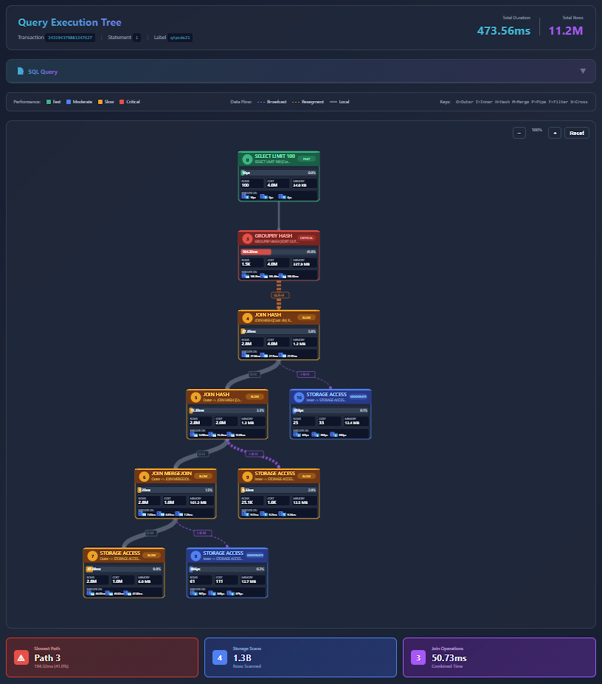
Vertica AI Assist can generate graphical visualizations of query execution profiles to help you understand performance characteristics.
Create a visualization
- Click Visualize in the Profile Summary section.
- Vertica AI Assist generates an HTML-based visualization.
- Open the provided link.
- Review the execution tree interactively.
Visualization features
The visualization displays:
- Query execution tree structure
- Data flow between operators
- Execution times
- Node-level details
- Performance distribution throughout the query
You can zoom, pan, and interact with the generated execution tree to analyze query behavior in greater detail.
Note
The MCP server generates the visualization files and makes them available through a link. Ensure you have network access to the MCP server location.
Learn Vertica concepts and best practices
Vertica AI Assist can answer product and architecture questions about Vertica.
Example prompts
Use these sample prompts to learn Vertica concepts and best practices.
- What is a projection?
- When should I partition a table?
- How should I design for large joins?
- What are the benefits of segmentation?
Results
Vertica AI Assist provides:
- Concept explanations
- Practical examples
- Architecture guidance
- Recommended best practices
This capability provides quick access to product information for both new and experienced Vertica users.
Generate table and schema documentation
Vertica AI Assist can create documentation for database objects.
Example prompts
Use these sample prompts to generate table and schema documentation.
- Describe this table for new team members.
- Generate column descriptions for this schema.
- Create documentation for this database.
Results
Vertica AI Assist generates:
- Business-friendly table descriptions
- Column-level explanations
- Schema summaries
Improve documentation with file uploads
When supported by the interface, you can upload reference materials to provide additional context. Supported file types include:
- DOCX
- CSV
- XLSX
Providing supporting documents can improve the accuracy and completeness of generated descriptions and documentation.
Privacy and consent
Certain actions may require confirmation before data is processed. If prompted, do one of the following:
- Select Yes to continue.
- Select No to cancel the action. Your organization's privacy and governance policies apply to all AI-assisted interactions.
Session management
Starting a new session provides a fresh context for subsequent requests. Note the following:
- Conversations remain within the current session.
- You can start a new session at any time.
Troubleshooting common issues
If the generated results do not meet your expectations:
- Use more specific prompts.
- Include object names, schemas, and filters.
- Specify date ranges and business context.
- Ask follow-up questions such as:
- Rewrite this query.
- Simplify this explanation.
- Make this query faster.
- Contact your administrator if you encounter configuration, permission, or connectivity issues.
Prompt writing guidelines
The quality of an AI response is influenced by several prompt parameters. Providing the right context helps Vertica AI Assist generate more accurate SQL, recommendations, explanations, and documentation. The most important ones are:
-
Clarity
State exactly what you want. Avoid ambiguous or vague instructions. Example: Summarize this document in 5 bullet points for database administrators.
-
Context
Provide relevant background information. Include domain, audience, and purpose. Example: This guide is for new Vertica customers with no database experience.
-
Task definition
Clearly specify the desired action. Examples: Summarize, explain, compare, rewrite, analyze, generate, and so on.
-
Role or persona
Specify the role for the model. Example: "Act as a database administrator."
-
Output format
Specify the structure of the response. Examples: Bullet list, table, JSON, step-by-step procedure, and so on
-
Audience
Identify the intended audience. Examples: Beginners, administrators, developers, data analysts, executives, and so on.
-
Constraints
Set limits on length, style, terminology, or scope. Examples: Summarize in 100 words, avoid technical jargon, and so on.
-
Examples
Provide examples to improve consistency and accuracy. The model learns the expected style and format from the examples.
-
Specificity
More specific prompts generally produce better results. Example: Instead of "Explain Kubernetes", consider using a strong prompt such as "Explain Kubernetes networking to a Linux administrator in 200 words."
-
Success criteria
Define what a good answer looks like. Example: "Include benefits, limitations, and one real-world example."